
Quick summary
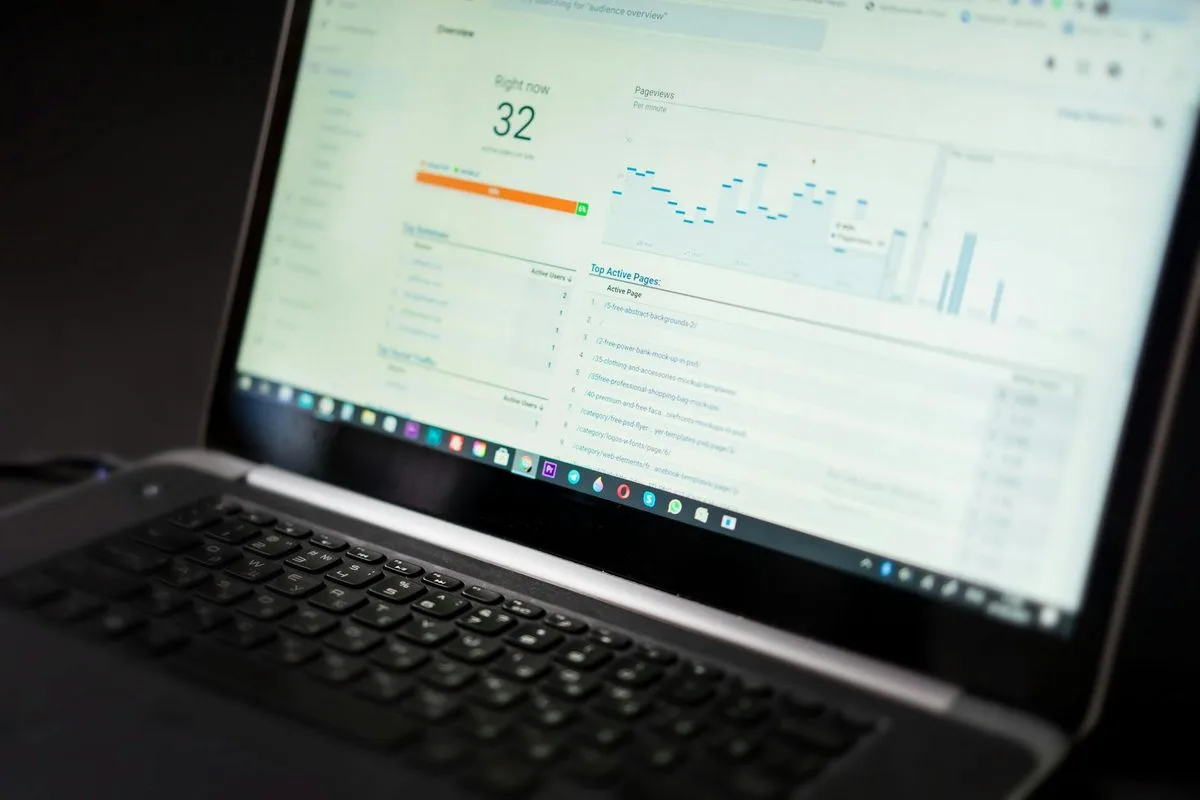
A complete Shopify analytics setup requires GA4 with enhanced ecommerce tracking (via Elevar or the native Google Sales Channel), Google Search Console connected with your sitemap submitted, and a heatmap or session recording tool (Microsoft Clarity is free). Shopify's native analytics is useful for revenue and orders but misses attribution, funnel data, and on-site behaviour.
Shopify's built-in analytics give you the basics: sessions, orders, revenue, conversion rate. They are useful as a starting point but they leave significant gaps. Most store owners making decisions purely from Shopify's native dashboard are missing important context about where their customers come from, what they do on the site, and why they do or do not buy.
Here is how to build an analytics setup that actually tells you what you need to know.
Connect Google Analytics 4
GA4 is the foundation. It tracks user journeys across multiple sessions, gives you full funnel visibility, and provides demographic and interest data that Shopify's native analytics do not.
To connect GA4 to Shopify:
- Create a GA4 property in Google Analytics
- Add your GA4 Measurement ID to Shopify via Settings > Customer events or via a theme code snippet
- Enable enhanced ecommerce tracking — this sends purchase, add-to-cart, and checkout events to GA4 automatically
- Verify that purchase events are firing correctly using GA4 DebugView
Without enhanced ecommerce tracking, GA4 will show you traffic but not what that traffic is doing in your funnel.
Set Up Google Search Console
Search Console shows you which organic search queries bring people to your store, which pages rank, and any indexing or crawl issues Google encounters.
Connect it by:
- Adding your domain in Search Console and verifying via DNS or HTML tag
- Linking the Search Console property to your GA4 property (in GA4: Admin > Search Console Links)
Once linked, you can see which keywords drive traffic alongside what those visitors do on the site — a powerful combination for SEO decision-making.
Install a Session Recording Tool
GA4 tells you what users do in aggregate. Session recordings show you what individual users actually do. The combination is far more powerful than either alone.
Tools like Microsoft Clarity (free) and Hotjar integrate with Shopify and record anonymised sessions. Watching users navigate your store, struggle with your checkout, or repeatedly tap an element that is not a link reveals friction points that no analytics dashboard can show you.
Clarity is free and has no session limit — there is no reason not to install it.
Build a Revenue Attribution Report
Shopify's default attribution gives credit to the last click. A customer who saw a Facebook ad, came back via email, and then converted through a Google search will have that sale attributed entirely to Google by default.
GA4's attribution settings allow you to choose a model that better reflects how your marketing actually works. For most Shopify stores, a data-driven or position-based model is more accurate than last-click.
Building a custom report in GA4 that shows revenue by source and medium — broken down by new vs returning customers — gives you the marketing attribution picture you actually need.
Track the Metrics That Matter
Not all metrics are equal. For a Shopify store, the key numbers to monitor weekly:
- Revenue by channel: Which marketing channels are actually generating sales, not just traffic
- Conversion rate by device: Mobile vs desktop — a large gap indicates mobile UX problems
- Add to cart rate vs conversion rate: A high add-to-cart rate with a low conversion rate points to checkout problems
- Average order value by channel: Some channels bring browsers, others bring buyers
- Returning customer rate: A rising rate means your retention is working; a falling rate means it is not
Create a Simple Dashboard
Rather than logging into GA4 every time you want a number, build a simple dashboard in Looker Studio (free, integrates with GA4 and Shopify) that shows your key metrics in one place.
A one-page weekly view — revenue, conversion rate, sessions by channel, top products — is enough for most store owners to make informed decisions without spending an hour in analytics.
Good analytics do not tell you what to do. They tell you where to look. The store owners who improve fastest are the ones who spend 20 minutes a week understanding their data rather than acting on assumptions.
Frequently Asked Questions
Is Google Analytics 4 free to use with Shopify?
Yes, GA4 is free. You connect it by adding your Measurement ID in Shopify's Customer Events section or via a theme snippet, then enabling enhanced ecommerce tracking to capture purchase, add-to-cart, and checkout events. The only cost comes if you choose a paid tag management or analytics layer on top, which most stores do not need.
What does enhanced ecommerce tracking in GA4 actually show you?
Enhanced ecommerce sends structured event data from your store to GA4: product views, add-to-cart actions, checkout steps, and completed purchases. This gives you full funnel visibility, meaning you can see exactly where customers drop off between product page and order confirmation. Without it, GA4 only records sessions and basic page data, not what users did in your funnel.
How is Google Search Console different from Google Analytics?
Search Console shows you how your store appears in Google search results: which queries trigger your pages, how often they are clicked, and your average ranking position. GA4 shows what those visitors do once they arrive. Linking the two properties in GA4 lets you combine both views and identify which search terms bring traffic that actually converts, rather than just traffic.
What is the best free session recording tool for Shopify?
Microsoft Clarity is the strongest free option. It records anonymised user sessions, generates heatmaps, and has no session limit on any plan. It integrates directly with Shopify and takes about 10 minutes to install. Hotjar offers a free tier but limits recordings per month. For most stores getting started with behavioural analytics, Clarity covers everything needed at zero cost.
If you want help setting up a proper analytics stack for your Shopify store, get in touch.